How to Download All Your Google Photos (and Keep the Right Dates)
Download Google Photos step by step with Google Takeout, every setting explained, then fix the wrong dates, the .json files and the albums it leaves behind.
To download all your Google Photos, use Google Takeout: go to takeout.google.com, click Deselect all, tick only Google Photos, choose .zip and a file size, and click Create export. Google emails you a set of zip files a few hours or days later, and you have 7 days to download them. Then comes the part nobody warns you about: many photos open with today's date, because Google put the real date in separate .json files. This guide covers both halves.
Which way to download Google Photos?
There are three ways to get photos out of Google Photos. Only one of them gets everything.
| Way | Good for | What you get |
|---|---|---|
| Google Takeout | the whole library | every photo and video, plus a .json file per photo with the date and place |
| Download on photos.google.com | an album or a few hundred photos | a zip of the photos, no .json files |
| Download in the phone app | single photos | the photo saved to the phone |
If you want everything, use Takeout. The other two are covered in downloading Google Photos without Takeout and downloading a single album.
Before you start
Check what Google kept. In Google Photos, open Settings and look at the backup quality. With Original quality, Takeout gives back your original files. With Storage saver (formerly High quality), Google compressed the photos when you uploaded them and did not keep the originals. No export can bring them back. See does Google Takeout give original quality.
Check your disk. Plan for about twice the size of your library: once for the zip files, once for the finished photos. Google shows how much space Photos uses on your Google storage page. How much disk space a Takeout needs has the details. On an external drive, use exFAT or NTFS, not FAT32, which cannot hold files over 4 GB.
Step 1: Request a Photos-only export
- Go to takeout.google.com and sign in with the account that holds your photos.
- Click Deselect all. By default Takeout exports every Google product you use, including Gmail and Drive.
- Scroll down to Google Photos and tick it. The button under it says All photo albums included. Leave it like that unless you only want some albums (exporting only some albums).
- Scroll to the bottom and click Next step.
- Under Destination, choose how you get the files. Send download link via email is the default. Add to Drive, Add to Dropbox, Add to OneDrive and Add to Box put the files into that cloud first, which needs free space there but avoids browser time-outs.
- Under Frequency, choose Export once. The other choice, every 2 months for a year, sends a full copy each time, not only the new photos.
- Under File type & size, keep .zip. It opens on Windows and Mac without extra software. .tgz is for Linux users who prefer it.
- Pick a file size: 1 GB, 2 GB, 4 GB, 10 GB or 50 GB. Takeout splits your library into parts of this size. 10 GB is a good middle. On a slow or unreliable connection, choose 2 GB, so a failed download costs minutes, not hours.
- Click Create export.
Step 2: Wait for the email
The Takeout page now shows "Export progress". A small library can be ready in an hour. A library of 100 GB or more usually takes a day or two, sometimes longer. You do not need to keep the page open. Google sends an email when the export is ready.
If it seems stuck, it usually is not. Why Google Takeout takes so long explains the wait and when to cancel and start again.
Step 3: Download every part within 7 days
The email has a Download your files button. It opens a page listing every part, named like takeout-20261011T090000Z-001.zip, -002.zip, and so on. Google may ask for your password again before each download.
- Download every part into one folder.
- Count them. The page shows how many parts there are. Check that every number is there.
- Compare the sizes. Every part except the last should be close to the size you chose. A much smaller one is usually a download that stopped early. Download it again.
Two limits matter. The links expire after 7 days, and each part can only be downloaded a limited number of times. If either runs out, you must request a new export. See the Takeout download link has expired.
You do not have to unzip anything yet. If you do, unzip every part into the same folder, because a photo and its .json file often end up in different parts. Google Takeout zip files shows how on Windows and Mac.
What you actually downloaded
Open a part and you find Takeout/Google Photos/, with a folder per year (Photos from 2019) and a folder per album. Next to most photos sits a small file with the same name and .json at the end:
IMG_1234.jpg
IMG_1234.jpg.supplemental-metadata.json
That .json file, called a sidecar, holds what Google knows about the photo: when it was taken (photoTakenTime), where (geoData), and the description you typed. Older exports name it IMG_1234.jpg.json. What the JSON files in Google Takeout are goes through one line by line.
What goes wrong after the download
Wrong dates. Your computer cannot read the sidecars, so it shows the date it can see. For a camera photo that still carries its date inside (EXIF), that is fine. For screenshots, images from WhatsApp and other chats, scans, edited photos and anything whose date you changed in Google Photos, the only date left is the file date, which is the day you downloaded it. Sort by date and your 2014 holiday sits next to this morning. Nothing is lost: the real date is in the sidecar. See why Google Takeout photos have the wrong date.
No location. The same goes for places. A location you added in Google Photos, or one Google worked out, lives only in the sidecar. On a map your photos look empty. See Google Takeout missing location.
Odd names and pairs. Google cuts long sidecar names short (...supplemental-metada.json), moves the (1) of duplicates to a different place, and gives edited photos an -edited copy that shares the original's sidecar. Matching them by hand is slow and easy to get wrong.
Albums become folders, and copies. An album is just a folder with copies of its photos and a metadata.json. A photo that is in three albums can appear four times: once in its year folder and once per album. Album membership is not stored inside the photos, so it is lost the moment you mix the files. See what happens to albums.
Live Photos and Motion Photos. An iPhone Live Photo comes back as a still and a short video with the same name. See Live Photos in Takeout.
Keep the zip files and the sidecars until the dates are fixed. They are your only copy of those dates.
Step 4: Put the dates and places back into the photos
This is the step that turns a download into a usable photo library. You have four honest options.
Takeout JSON Metadata Fixer (our app, Windows and Mac). You drop in the zip files, it finds every photo's sidecar, including cut-off names and (1) duplicates, and writes the real date taken and the GPS position into each photo. It also sets the file's created and modified dates, so File Explorer and Finder sort correctly. In the same run it can sort photos into Year/Month folders, by place or, on Windows, back into your Google Photos albums. An exact copy of a photo that is already in the destination is skipped, so album copies do not double your library. It runs on your own computer and nothing is uploaded. The first 500 photos are free. Premium is one payment of $19.99 (US dollars; stores show your local price) for unlimited photos.
exiftool (free, command line). One command copies photoTakenTime into the photos. It works well on clean exports and needs extra steps for the cut-off names, duplicates and videos. ExifTool for Google Takeout has tested commands.
GooglePhotosTakeoutHelper (GPTH) (free, command line). An open-source tool that sorts a Takeout export into folders by date and fixes file dates. It suits people who are comfortable in a terminal.
immich-go (free, command line). If you are moving to Immich, immich-go reads the Takeout zips directly and uploads photos with their dates and albums. See Google Photos to Immich.
Google Takeout metadata tools compared puts them side by side.
Step 5: Fix them with the app, step by step
These pictures are small parts of the real app. The Windows and Mac versions look almost the same.
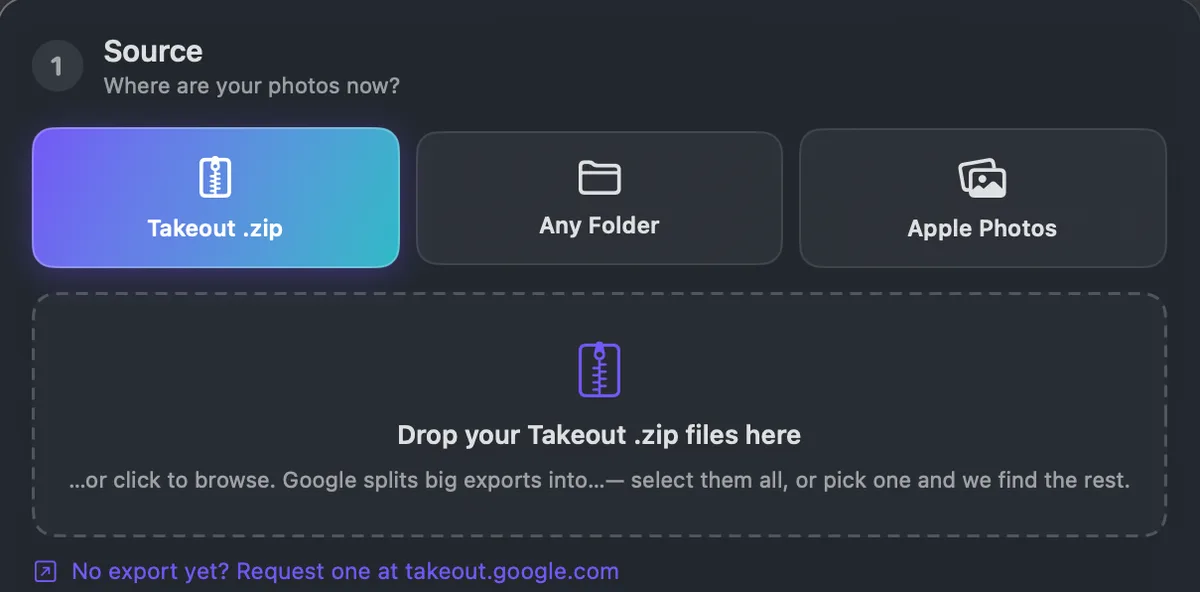
Source. Choose Takeout .zip and drop in your zip files, or pick one and the app finds the rest. It checks that you have enough free space and tells you at once if a part is missing. If you already unzipped everything, choose Any Folder.
Destination. Choose a new folder for the finished library. Your original download stays as it was. You can also write straight to a USB stick or SD card, into the DCIM folder that phones and cameras use.

Names and folders. Two menus decide how the result looks, and the line under them previews one real file. Here a photo becomes 2024/03-March/2024-03-15-1430_Paris.jpg.

Extras. All optional: place names in files and folders (needs the internet for the lookup; only rough coordinates are sent), HEIC to JPG, Live Photo handling, screenshots into their own folder, old videos to MP4.
Dry run first. Turn on Dry run to see every new name, folder and date before a single file is written. A dry run does not count against the 500 free photos.

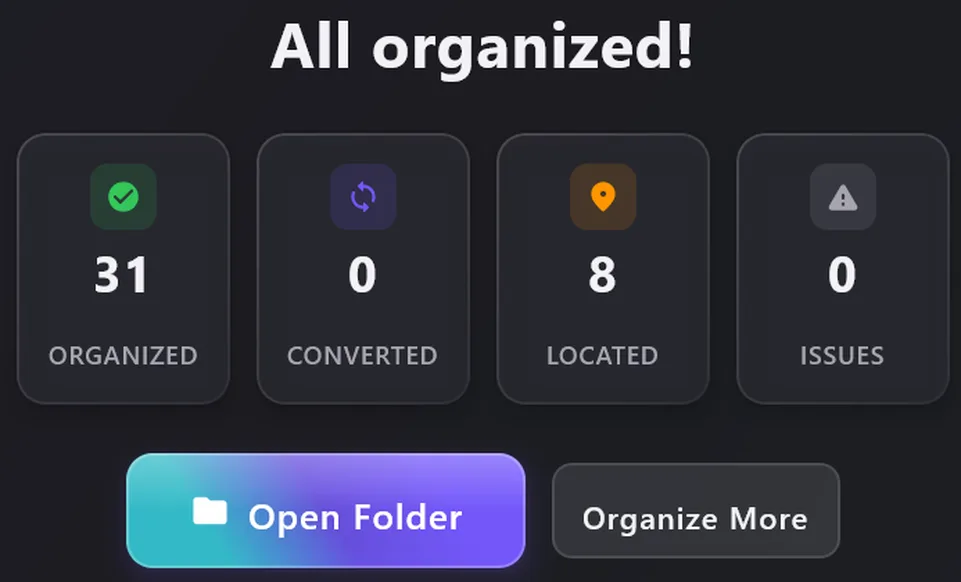
Start. The app reads every sidecar, writes the date, time and place into each photo and sets the file dates. Photos with no sidecar keep the date they already carry. At the end it lists any file it could not match, so you know exactly what state your library is in.
Step 6: Check the result before you delete anything
- Open photos from a few different years and check the date taken: in File Explorer, right-click, Properties, Details; on a Mac, Get Info. How to check that photo dates are fixed shows more ways.
- Compare the number of photos with the number in your Google Photos library. A few hundred more is normal (album copies, edited versions).
- Copy the library to a second place, like an external drive. Google Photos backup explains how to keep that copy useful and current.
- Only then think about deleting anything from Google. Is it safe to delete Google Photos after export has a checklist.
Frequently asked questions
Can I download all my Google Photos at once?
Yes, with Google Takeout. The web and phone apps only download what you select. Download all Google Photos at once answers the common follow-ups.
How do I download Google Photos to my PC?
Use Takeout in a browser on the PC and save the zip files to a folder on it. Download Google Photos to PC has the Windows steps.
Does downloading delete my photos from Google?
No. Takeout makes a copy. Your library stays in Google Photos until you delete it yourself.
Why do all my downloaded photos show today's date?
The real date is in the .json file next to each photo, and your computer does not read it. Write it back into the photos (Step 4) and the dates come back.
How long does the download link last?
Seven days from the email. After that, request a new export.