How to Turn On USB Debugging on Android (Samsung, Xiaomi, Pixel, vivo)
Turn on Developer options and USB debugging on any Android phone, with the exact menu names for Samsung, Xiaomi, Pixel, vivo, OPPO and OnePlus, and what to do when the computer still does not see the phone.
To turn on USB debugging, open Settings, then About phone, and tap Build number seven times until the phone says you are a developer. Then go back to Settings, open Developer options, and switch on USB debugging. When you connect the phone to a computer, unlock it and tap Allow on the "Allow USB debugging?" prompt.
Why you might want it
USB debugging lets a computer talk to the phone with Google's adb tool. For photos, that is the way to copy files to the phone without the date changing, and to fix or rename photos on the phone in bulk. A normal "File transfer" copy cannot do either. See copy photos to Android without changing the date.
It takes about a minute, nothing is installed on the phone, and you can turn it off again.
Step 1: Turn on Developer options
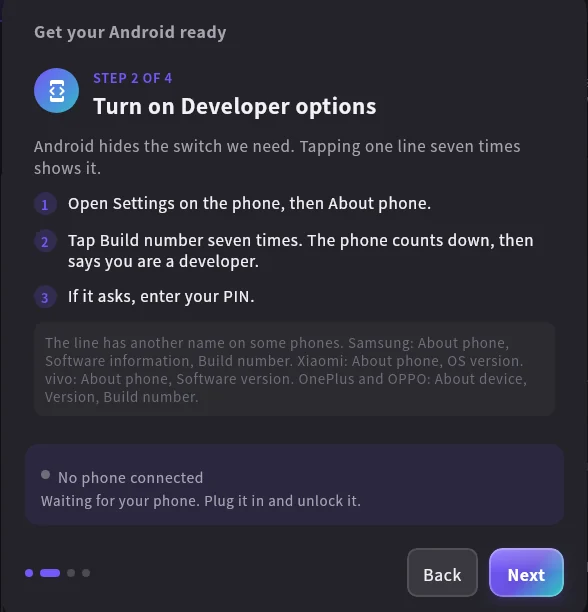
The switch for USB debugging is hidden in Developer options, and Developer options are hidden until you tap one line seven times. Where that line is depends on the phone:
| Phone | Where to tap seven times |
|---|---|
| Google Pixel, Motorola, Nokia | Settings, About phone, Build number |
| Samsung | Settings, About phone, Software information, Build number |
| Xiaomi, Redmi, POCO | Settings, About phone, OS version (older: MIUI version) |
| vivo | Settings, About phone, Software version |
| OPPO, realme, OnePlus | Settings, About device, Version, Build number |
The phone counts down ("You are now 3 steps away from being a developer") and may ask for your PIN.
Step 2: Switch on USB debugging
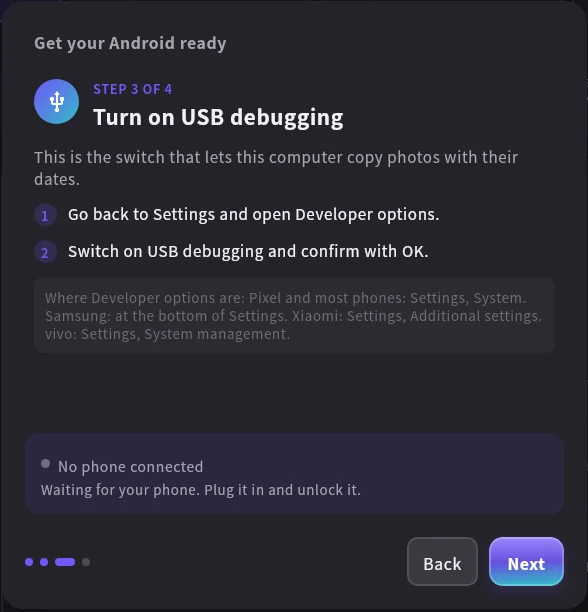
Go back to Settings and open Developer options:
| Phone | Where Developer options are |
|---|---|
| Google Pixel and most others | Settings, System, Developer options |
| Samsung | At the bottom of Settings, Developer options |
| Xiaomi, Redmi, POCO | Settings, Additional settings, Developer options |
| vivo | Settings, System management, Developer options |
| OPPO, realme, OnePlus | Settings, Additional settings (or System), Developer options |
Switch on USB debugging and confirm with OK.
Xiaomi phones have a second switch, USB debugging (Security settings). You only need it to let the computer type or tap on the phone. For copying photos, the first switch is enough.
Step 3: Connect and allow
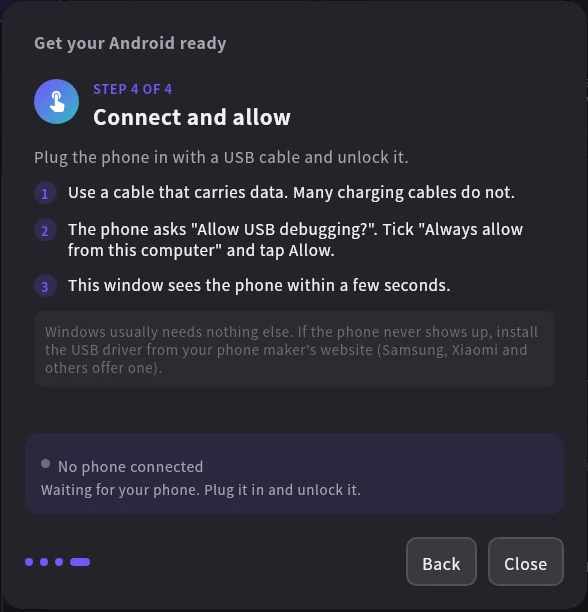
- Use a USB cable that carries data. Many cables that came with chargers only charge.
- Plug the phone in and unlock it.
- The phone asks "Allow USB debugging?". Tick Always allow from this computer and tap Allow.
To check from the computer, run adb devices. A line ending in device means it worked. unauthorized means the prompt on the phone has not been answered yet.
When the computer still does not see the phone
No prompt on the phone. Unplug it, unlock it, plug it in again. If nothing appears, open Developer options and tap Revoke USB debugging authorizations, then reconnect.
Windows does not see it at all. Most current phones work without any driver on Windows 10 and 11. If yours does not, install the USB driver from the phone maker's website. Samsung, Xiaomi and others offer one.
Linux says "no permissions". Install your distribution's Android udev rules, for example sudo apt install android-sdk-platform-tools-common on Ubuntu and Debian, then plug the phone in again.
It shows "offline". Unplug, unlock, plug in again. A different USB port or cable often helps.
Is it safe?
USB debugging lets a computer you allowed read and change files on the phone. A computer you did not allow cannot, because the phone asks first. Turn it off when you are done if the phone is often plugged into computers you do not own. Turning it off does not undo anything you copied.
Using it for photos
Photo Date & Metadata Fixer's Android Phone tab, which is Windows only, shows these steps one at a time, and tells you live what it sees: no phone, waiting for Allow, or connected. Then it sends photos with their real dates, and renames or sorts photos that are already on the phone.
Frequently asked questions
Does USB debugging delete anything or void the warranty?
No. It is a standard Android setting. It does not root the phone and does not change your data.
Do I need to keep Developer options on?
No. Switch USB debugging off, or turn Developer options off completely with the switch at the top of that screen.
Can I do this over Wi-Fi instead of a cable?
Android 11 and later have Wireless debugging in Developer options. It works, but a cable is faster and simpler for large photo folders.