How to Change the Date of WhatsApp Photos on Android
WhatsApp photos on Android land on the wrong day in the gallery. Step by step, how to give every WhatsApp image the date in its file name and put it back on the phone.
To change the date of WhatsApp photos on Android, copy the WhatsApp Images folder to a computer, let a tool read the date from each file name (IMG-20190714-WA0012.jpg was received on 14 July 2019), write that date into the photo, and send the photos back to the phone with the same date on the file. Then hide WhatsApp's own folder from the gallery so you do not see every photo twice.
Why WhatsApp photos land on the wrong day
WhatsApp removes the date taken from every photo it sends. The photo that arrives has no date inside it, so the gallery falls back to the file's own date. That date changes whenever the file is copied, restored from a backup or moved to a new phone. After a phone switch, years of WhatsApp photos can all show up on the same day.
One date survives everything: the one in the file name. WhatsApp names each image after the day it arrived, for example IMG-20190714-WA0012.jpg. Videos follow the same pattern, VID-20190714-WA0003.mp4. That is the day you received the photo, not the day it was taken. For most chats the two are the same day or close to it. The full story is in what you can and cannot recover from WhatsApp photos.
What you need
- A Windows PC with Photo Date & Metadata Fixer. The Android Phone tab is Windows only.
- A USB cable.
- USB debugging turned on, so the app can set file dates on the phone. The app's setup guide walks you through it in four steps.
Step 1: Find the WhatsApp Images folder
Connect the phone and choose File transfer on the phone. In File Explorer, open the phone and go to:
Internal storage\Android\media\com.whatsapp\WhatsApp\Media\WhatsApp Imageson current phones.Internal storage\WhatsApp\Media\WhatsApp Imageson phones set up before 2021.
The Sent subfolder holds the photos you sent yourself. Copy the whole WhatsApp Images folder to your PC, for example to Pictures\WhatsApp Images. The copy gets today's date on the computer. That does not matter, because the app reads the date from the name.
Step 2: Get the phone ready for the app
Open the app and go to the Android Phone tab. The first time, it offers a short guide called Get your Android ready.
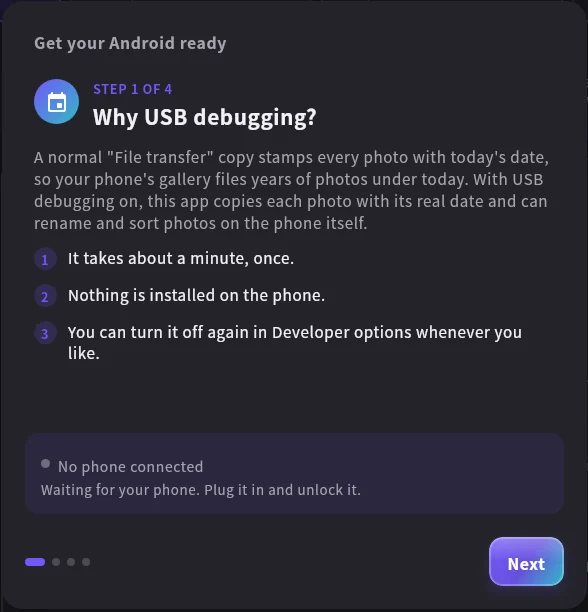
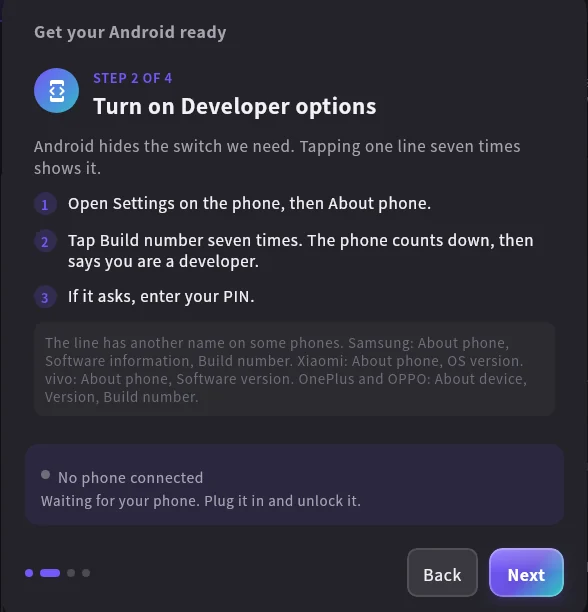
Turn on Developer options by tapping Build number seven times.
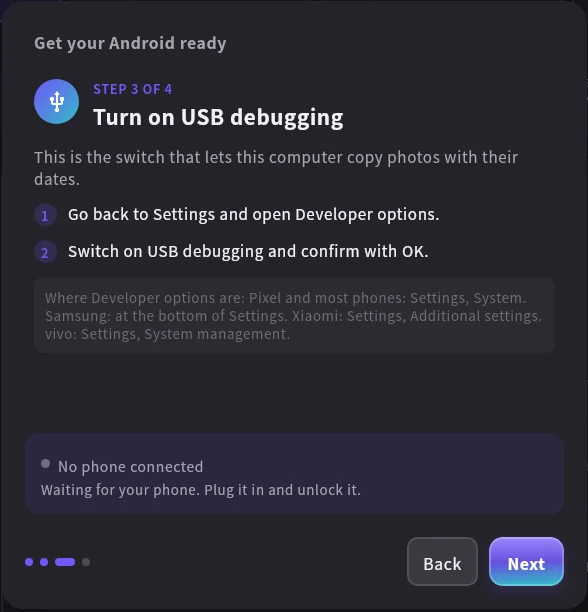
Then turn on USB debugging in Developer options.
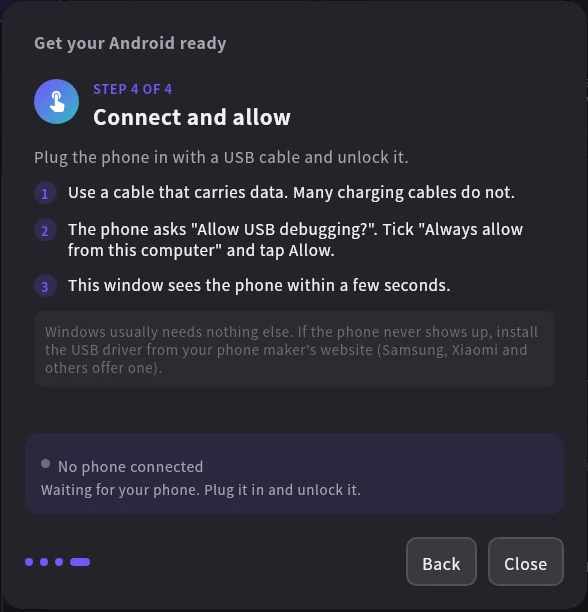
Connect the phone and tap Allow when it asks to allow USB debugging. The guide shows live when the phone is connected. The app downloads Google's adb tool for you, so there is nothing else to install.
Step 3: Send the folder back with the right dates
Choose Folders to phone and pick the WhatsApp Images folder you copied.

For each photo, the app finds the date in the file name and writes it into the photo as the date taken. WhatsApp names carry a day but no time, so the app uses noon. Then it copies the photos to DCIM on the phone and gives each file the same date, so the gallery puts it on the right day. It renames clashes instead of overwriting, skips photos that are already there, and checks the free space first.
If you know the photos in a folder were taken on another day, for example old pictures someone forwarded to you years later, turn on Set a custom date and place for that folder instead. It gives every photo in it the date you type.
Step 4: Hide the old copies
The originals are still in WhatsApp's folder with the wrong dates. The gallery now shows each photo twice. The safe fix is to hide WhatsApp's folder instead of deleting it, so your chats keep their pictures. In WhatsApp, open Settings, then Chats, and turn off Media visibility. New photos from chats will then stay out of the gallery too.
When you are done, you can turn USB debugging off again in Developer options.
Photos already in DCIM or Pictures
Some people have already moved their WhatsApp photos into a folder under DCIM or Pictures. For those, you do not need the round trip. Use Rename on phone or Re-folder on phone, pick the folder and turn on Fix wrong file dates. The app reads the date from each name on the phone and shows you what would change before it changes anything. Every change can be undone.
Frequently asked questions
Can I get the date the photo was really taken?
Usually not. WhatsApp removed it before the photo reached you. The name gives the day you received it. If the sender still has the original, ask them to send it as a document, which keeps the date inside the file.
Does this work for WhatsApp videos?
Yes. Video names like VID-20190714-WA0003.mp4 carry the date the same way.
Will the photos upload to Google Photos again?
If Google Photos backs up the folder the app sends to, yes, and with the corrected date. Turn backup off for that folder first if you do not want that.
Does this work without a PC?
Not with this app. Google Photos can change the date one photo at a time in the app, which works for a handful but not for a few thousand. See how to change the date of a photo on Android.
Are my photos uploaded anywhere?
No. Everything happens on your PC and your phone, over the USB cable.